

1. Install and create a wallet
1
Install the extension
Install the Xverse browser extension from xverse.app and use it on a desktop browser.
2
Create a wallet
Open Xverse and select Create a new wallet. Set a password when asked.
3
Back up the seed phrase
Xverse shows your seed phrase. Write it down in order and keep it safe, then confirm the words it asks for.
2. Switch to Signet
Writz on testnet uses Bitcoin signet, a Bitcoin test network. Xverse starts on Bitcoin mainnet.1
Open the network settings
In Xverse, open Settings, then Network.
2
Select Signet
Select Signet and then Save. Do not pick Testnet3 or Testnet4: they are different test networks and Writz will not see coins on them.
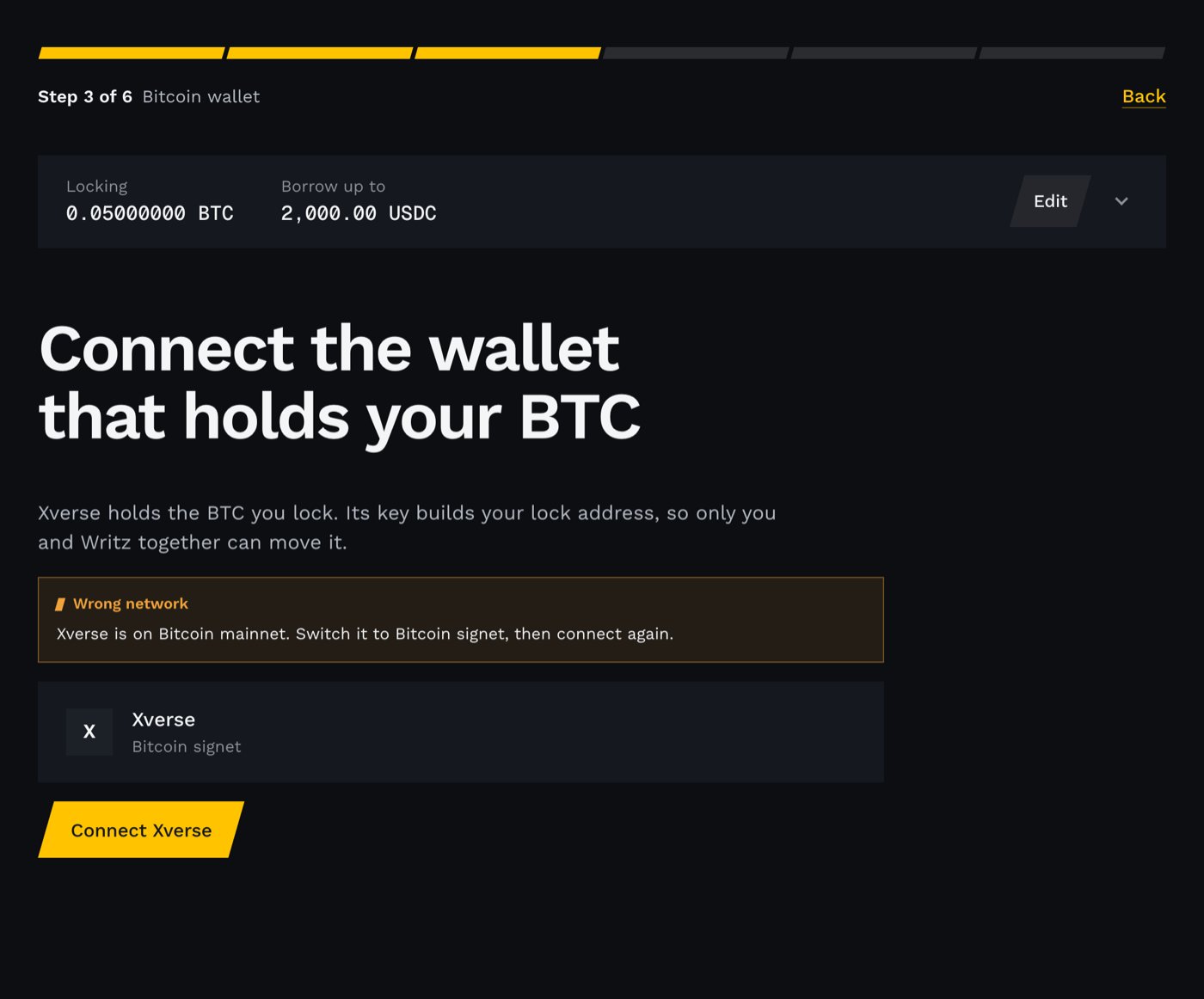
What the app shows when Xverse is on the wrong network.
3. Find your payment address
Xverse has two Bitcoin addresses: a payment address and an ordinals address. Writz uses the payment address.- Xverse labels them in its receive screen. Use the one marked for Bitcoin payments, not Ordinals.
- Send faucet coins to the payment address. Coins sent to the ordinals address do not count toward your balance in Writz.