

Open your loan
Go to testnet.writz.xyz and connect your wallets. The home page shows your loan with Borrow more, Repay and Open Loan 1 (the number is your loan’s). Select Open Loan to see the full loan page. Loans are found on Stellar, so this works from any device with the same Stellar wallet.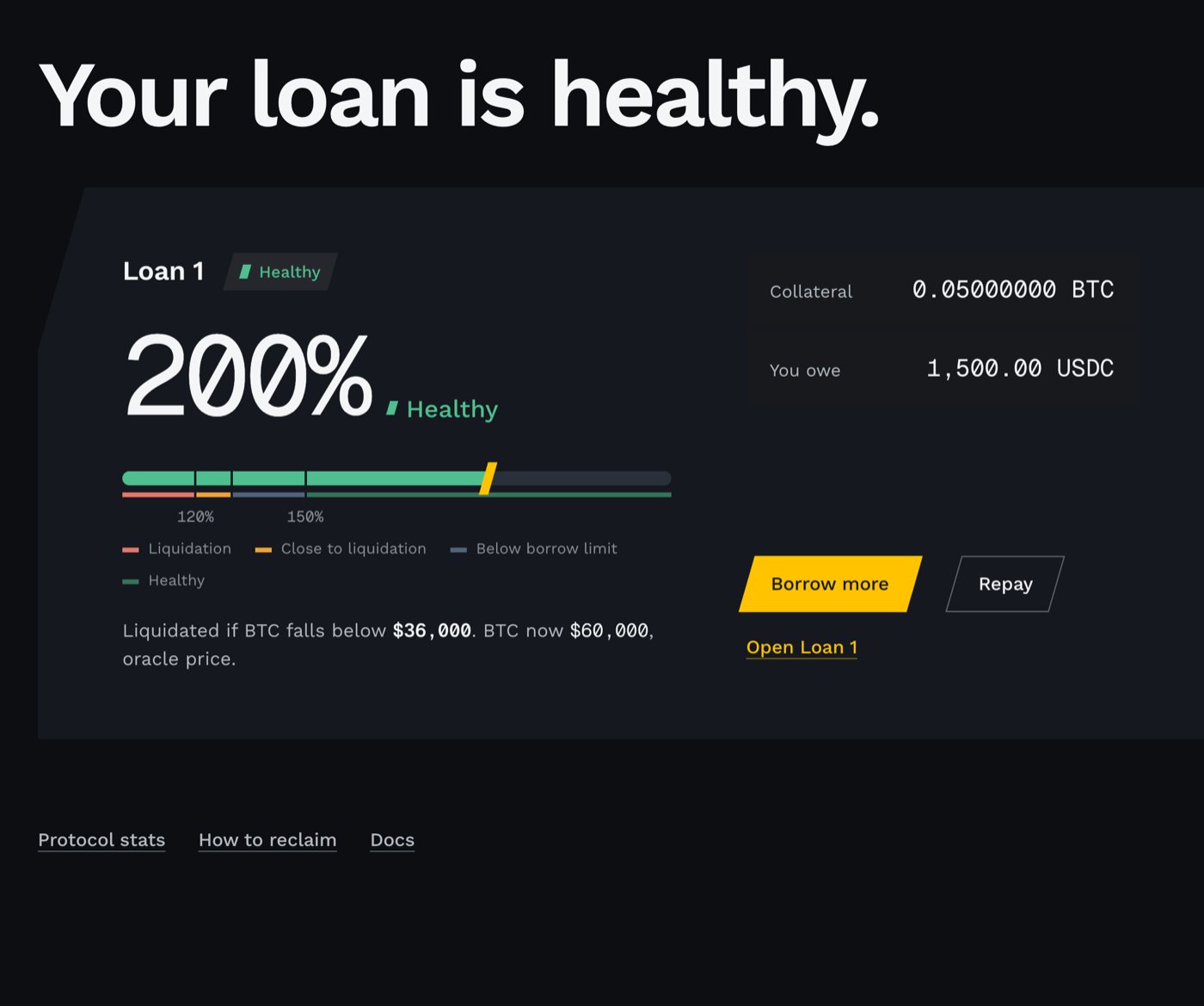
The home page with an open loan. Example amounts.
1. Repay
1
Open the Repay tab
On the loan page, select Repay. It shows your USDC balance and what you owe, for example Wallet: 1,620.00 USDC. You owe 1,500.00 USDC.
2
Enter the amount
Enter an amount, or select Repay all to pay the whole debt. A partial repayment lowers the debt and raises your collateral ratio; only a full repayment lets you release the BTC.
3
Confirm
Select Repay and confirm in your Stellar wallet.
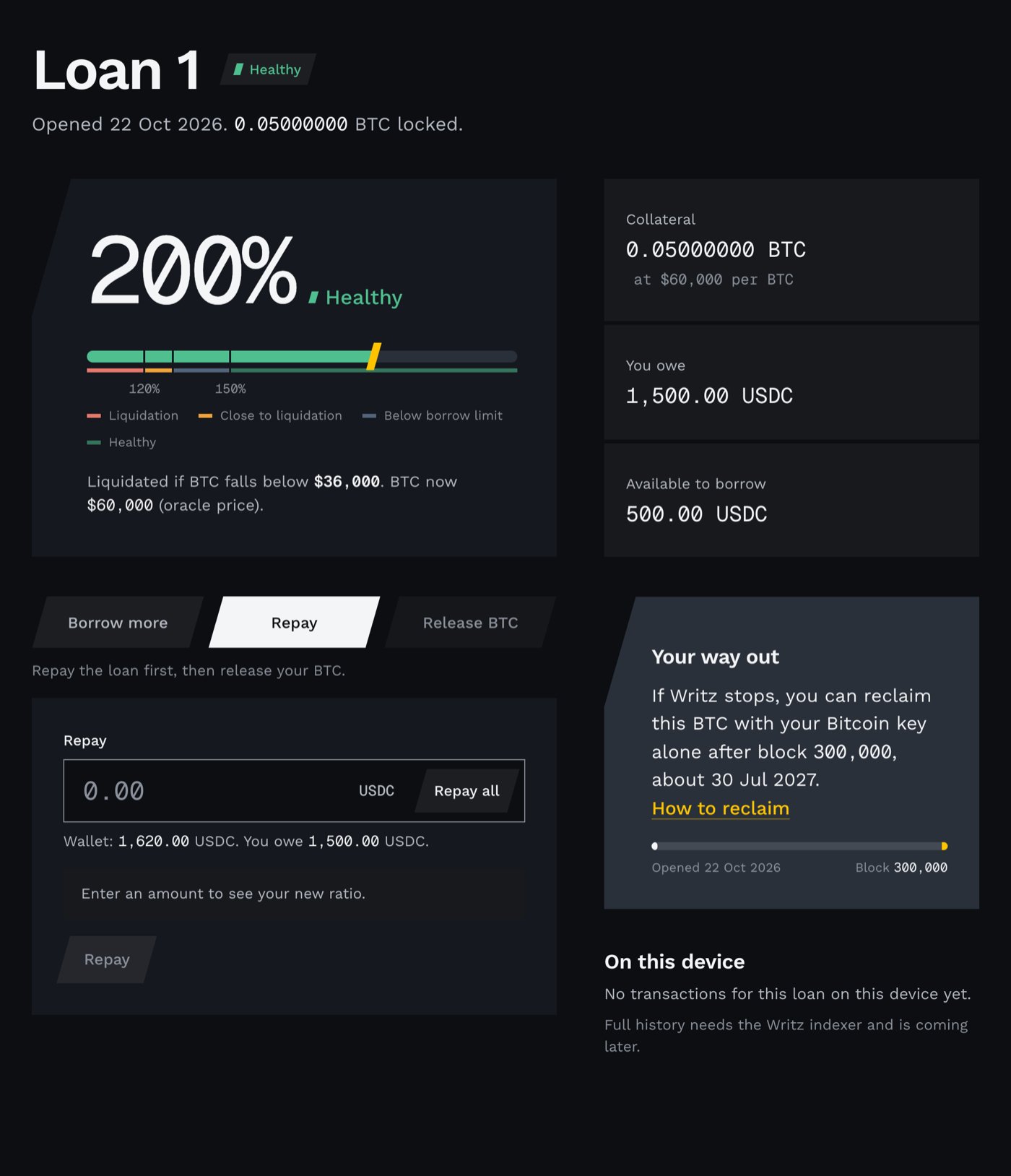
The Repay tab. Example amounts.
2. Wait for Writz to co-sign
After a full repayment the loan shows Loan repaid and BTC still locked. Writz now co-signs the release of your BTC, which is usually ready within a minute. Until then the page reads Waiting for Writz. Your BTC is safe while you wait: it stays in the lock address, and nobody can move it without your key.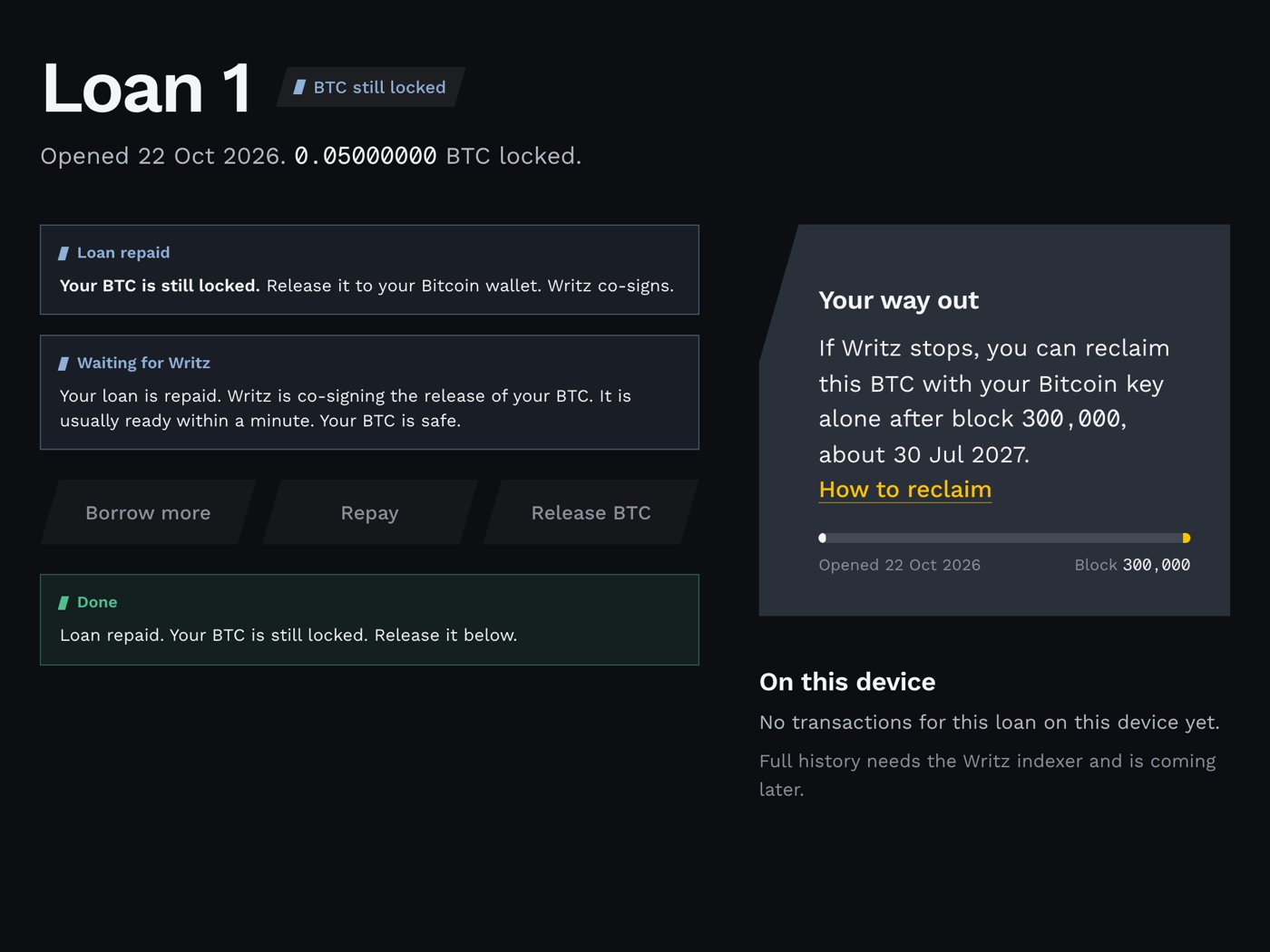
Repaid, waiting for Writz's co-signature.
3. Release your BTC
1
Open the Release BTC tab
Select Release BTC. The page shows where the BTC goes and what you receive:
- Send to your Bitcoin key’s address: the address of the Xverse key that made the deposit.
- Amount, Bitcoin network fee (a few hundred sats) and You receive, the amount less the fee.
2
Slide to release
Drag Slide to release all the way to the right. The app checks the loan on Stellar, confirms it is repaid and gets Writz’s signature.
3
Confirm in Xverse
Xverse opens and asks you to sign. Confirm it. The app sends the transaction to Bitcoin.
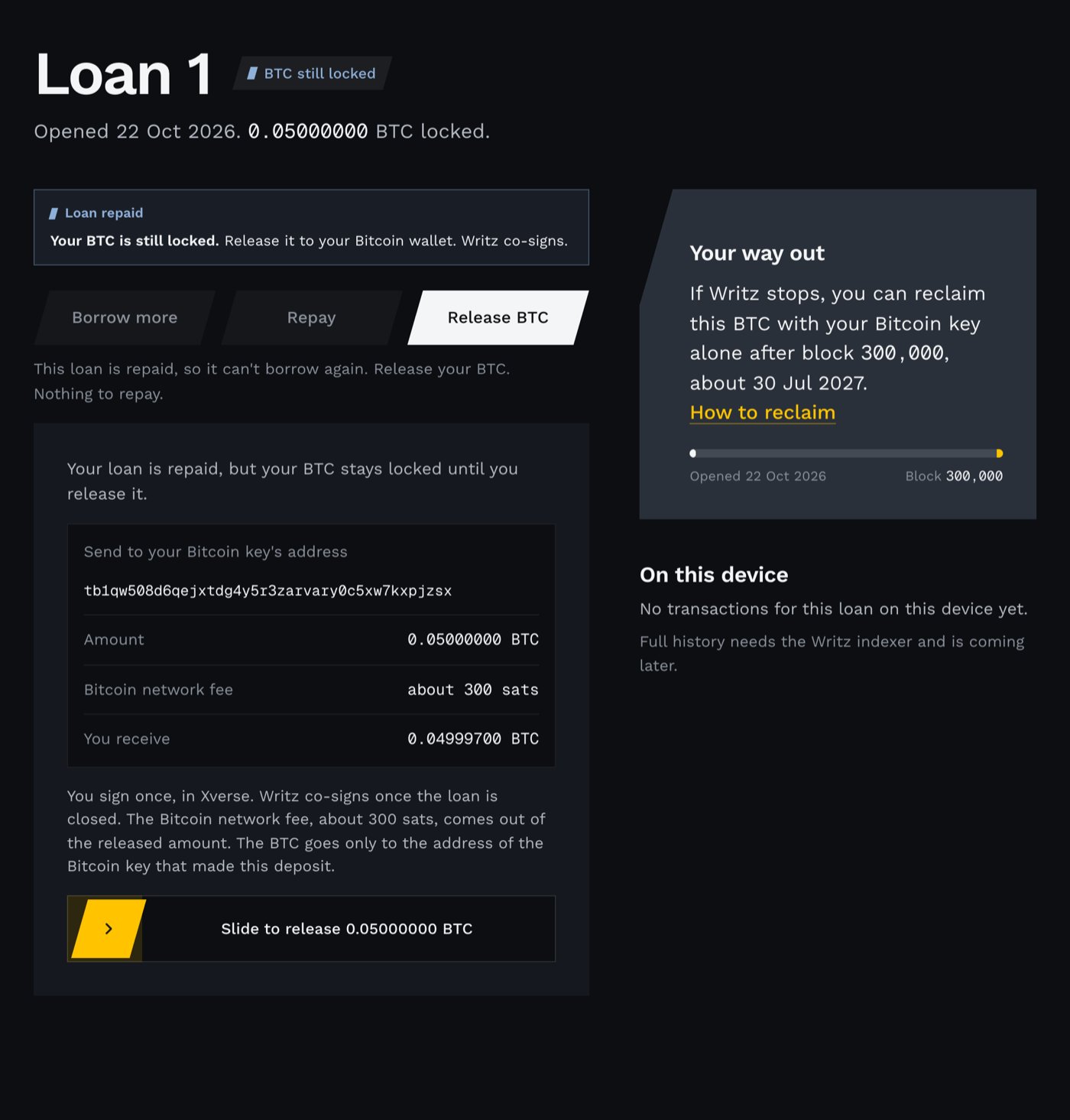
Release review. The BTC can only go to your own key's address. Example address and amounts.
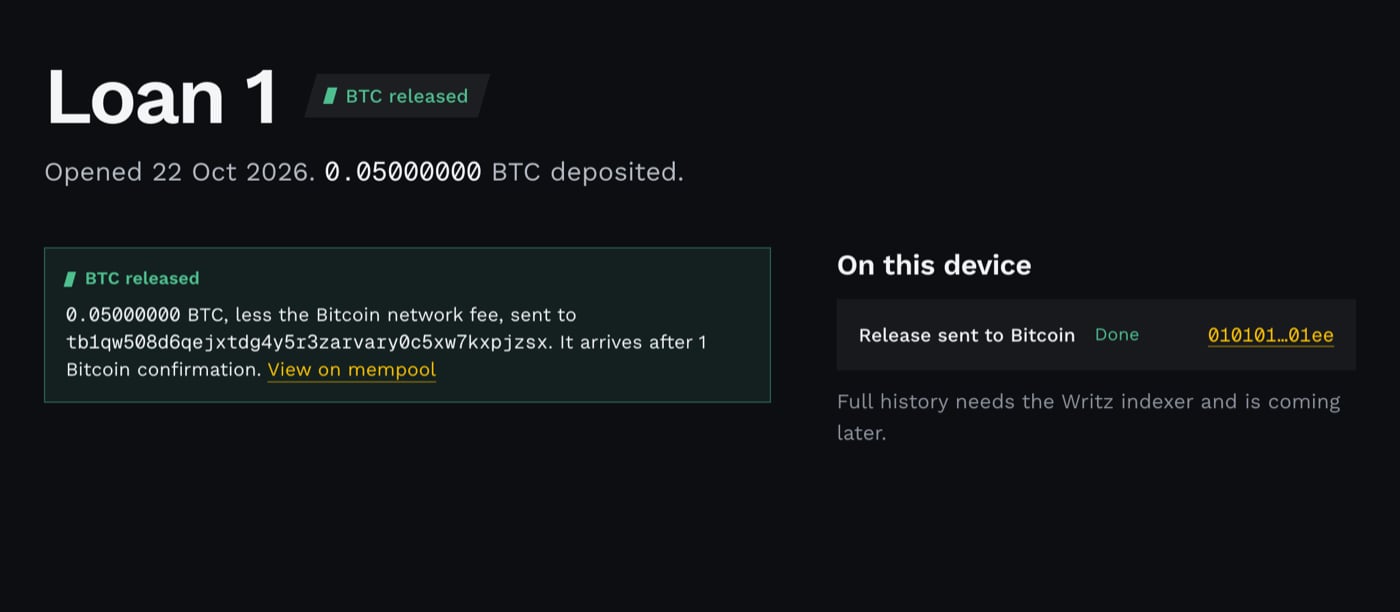
Released. Example amount and address.
If something blocks the release
- Xverse not connected, or a different Xverse account: the release needs the same Bitcoin key that made the deposit. Connect it in the Wallets panel and try again.
- Waiting for Writz takes longer than a few minutes: refresh the page later. Your loan is repaid on Stellar and the release does not expire.
- Writz is not available at all: you don’t need Writz to get your BTC back in the end. After the block height shown under Your way out, your key alone can spend from the lock address. See How to reclaim in the app and Manual Emergency Recovery.